

Before you upload
- Open Imports, choose Profile Photos, and select the recipient program.
- Choose Recipients as the resource, then continue to the photo upload step.
- In Unique Field to Consider, select the field represented in every photo filename. Choose Entity ID when it is available in your source files.
- Decide whether the imported images should become the recipients’ profile photos.
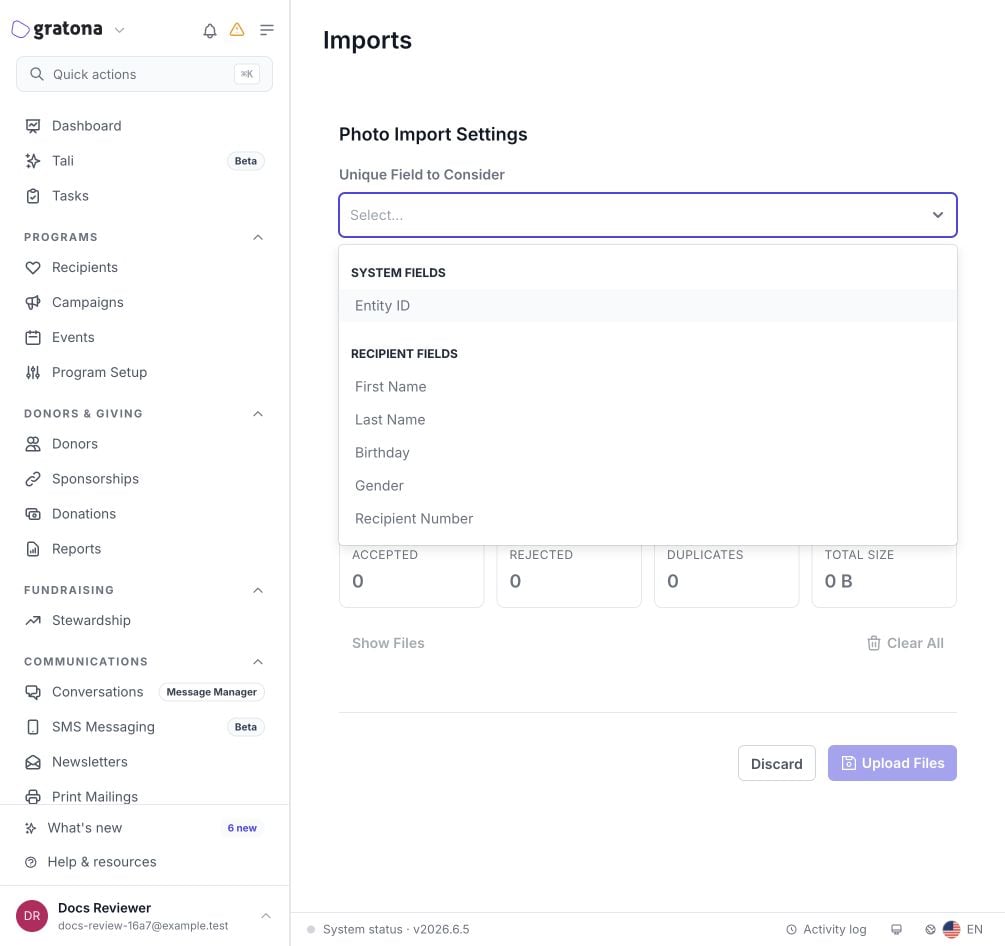
Choose the matching field
You have two useful choices:- Entity ID is the safest default. Copy the system-generated Gratona ID from the recipient record or an export.
- A recipient form field works when your organization already has a stable identifier, such as a recipient number, case number, email address, or username.
Name each photo
The filename must contain the selected recipient field’s value. The file extension is not part of the match. For the most predictable result, make the filename just the value:
Descriptive text can appear before or after the value. For example,
recipient_4821_profile.jpg and student_DO0140540_profile.png can match the same values shown above. Spaces, hyphens, and underscores are treated as separators for general identifiers such as recipient numbers, so ABC-001.jpg can match a stored value of ABC 001.
Even though descriptive text is supported, exact-value filenames are easier to audit. When matching a numeric Entity ID, avoid adding other numbers such as years or sequence numbers to the filename.
You do not need to add a field label such as Entity ID to the filename, and a CSV is not required for a photo import.
Supported images
Use one of these file types:- JPG or JPEG
- PNG
- GIF
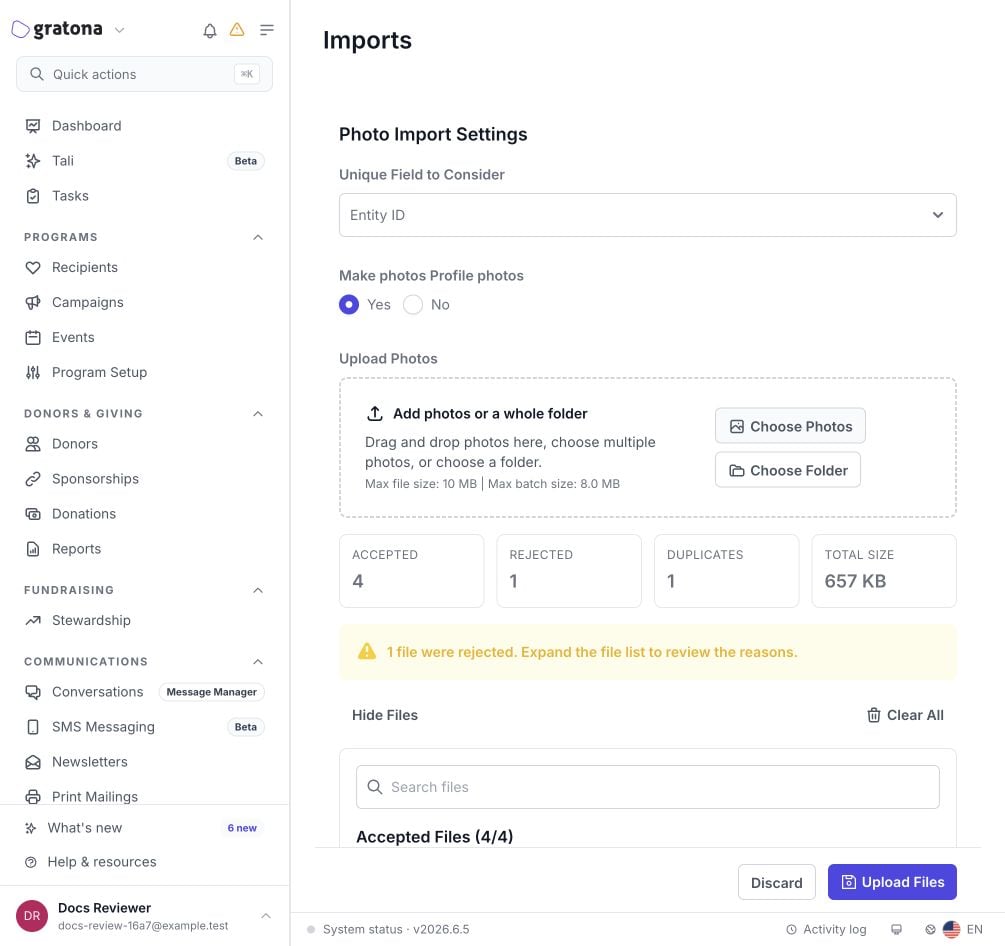
Validate before importing
Gratona validates the batch before attaching any photos. Review the validation results, especially skipped files:- No matching record means the filename does not contain a value found in the selected field for a recipient in this program.
- Matched multiple records means the value is not unique enough to identify one recipient.
- Invalid file type means the image is not a supported JPG, JPEG, PNG, or GIF.
- File size exceeds the limit means the image is larger than the limit displayed on the upload screen.
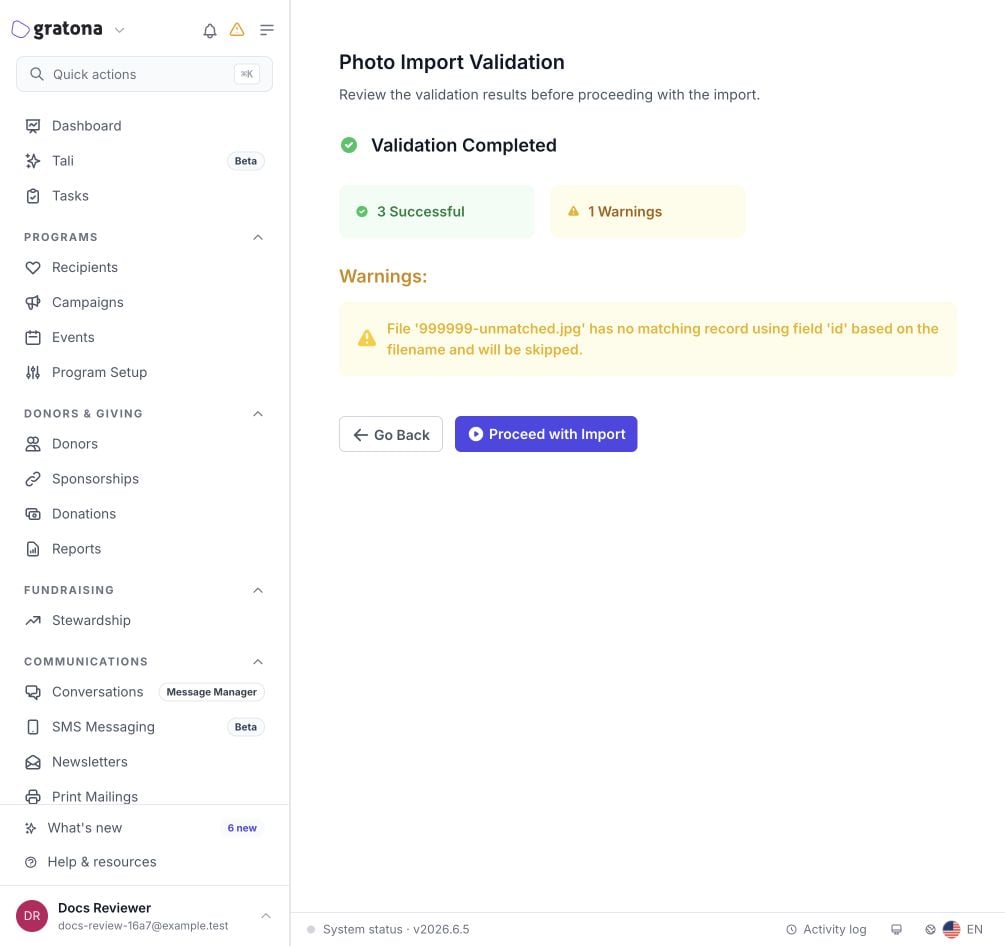
Troubleshooting a filename
If a photo does not match:- Confirm that you selected the field represented in the filename.
- Copy the value directly from the recipient record or a recipient export.
- Rename the file to the exact value plus its extension, such as
4821.jpg. - For email or username fields, restore every period, hyphen, underscore, plus sign, and
@character. - Confirm that the recipient belongs to the program selected for the import.
- Validate the batch again before importing.